SEM Insider · Tools
Google Ads Editor: 9 Bulk Workflows That Save Hours Every Week
Practical Google Ads Editor workflows for freelancers and account managers who handle several accounts and want fewer hours in the web interface.
Updated September 22, 2026 · 9 min read
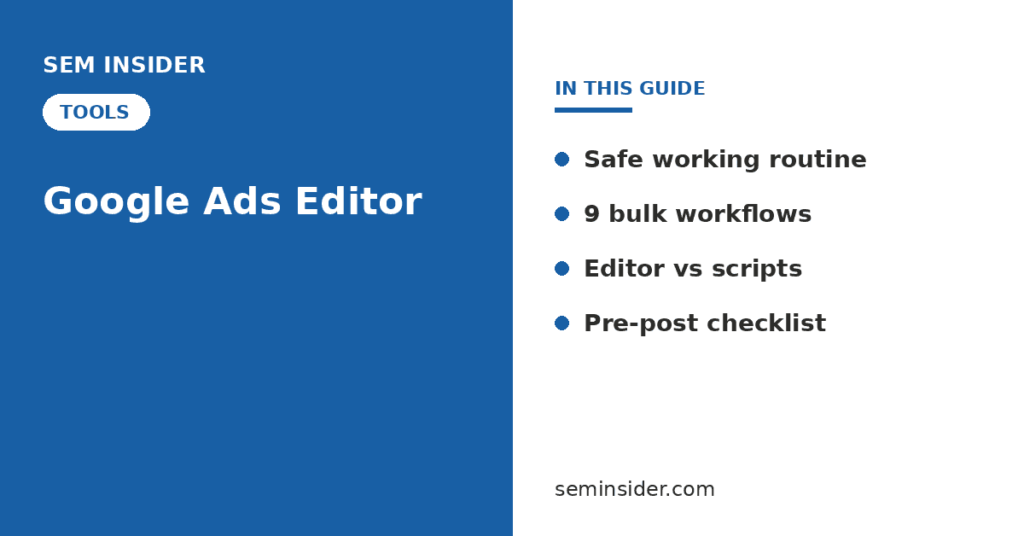
In this guide
Why use Google Ads Editor
Google Ads Editor is Google’s free desktop application for Windows and macOS. You download one or more accounts, make changes offline, review them, and post everything at once. For large or repetitive edits it is faster and less error-prone than clicking through the web interface.
Work offline
Download an account and edit without a live connection. Changes stay local until you post.
Edit in bulk
Change hundreds of keywords, ads or settings with one action.
Review before posting
Every pending change is marked and can be checked or reverted before it goes live.
Set up a safe working routine
Get recent changes first
Always click Get recent changes before editing. If someone changed the account in the web interface, working on stale data can overwrite their changes.
Export a backup
Use Account → Export to save a copy of the account (or the campaigns you are editing) before large changes. You can import it later if you need to restore settings.
Work in a filtered view
Select only the campaigns or ad groups you are changing in the tree view. This limits the scope of bulk actions.
Check changes before posting
Run Check changes to catch policy and validation errors before they reach the account.
9 bulk workflows
1. Find and replace text across ads
Select the ads, then use Replace text to swap a phrase across headlines, descriptions and paths. Use it for price changes, offer updates, year references and brand name changes. Restrict the search to specific fields to avoid unintended replacements.
2. Make multiple changes from a spreadsheet
Make multiple changes accepts pasted rows from a spreadsheet. You can add or update keywords, ads, ad groups, bids and final URLs across many ad groups at once. Include the campaign and ad group columns so Editor knows where each row belongs.
3. Copy a winning structure to a new campaign
Copy an ad group or full campaign, paste it into another campaign, then use Replace text to change the location or service terms. This is the fastest way to launch a new geo or service using a proven structure.
4. Append text to keywords or URLs
Append text adds text before or after existing values. Use it to add tracking parameters to final URLs or to create modified keyword versions for testing.
5. Bulk-update final URL suffix and tracking templates
Select all campaigns or ad groups and set the tracking template or final URL suffix in one step. This keeps UTM parameters consistent across the account.
6. Find duplicate keywords
Use Tools → Find duplicate keywords to identify keywords repeated across ad groups or campaigns. Duplicates split data and can compete with each other in the same auction.
7. Add negative keywords in bulk
Paste a list of negatives into the negative keywords section with campaign or ad group columns, or add them to shared lists from the shared library. This is much faster than adding them one by one in the web interface.
8. Use custom rules to catch errors
Custom rules let you define checks, such as ads missing a keyword in the headline or campaigns without sitelinks. Editor flags any item that breaks a rule before you post.
9. Review performance data before editing
Download statistics for the date range you need and add performance columns to the data view. Sort keywords by cost and conversions to decide what to pause or edit without switching back to the web interface.
| Workflow | Best use | Time saved vs web interface |
|---|---|---|
| Replace text | Offer, price or year changes across ads | High |
| Make multiple changes | Launching or restructuring many ad groups | Very high |
| Copy and paste structures | New geo or service campaigns | High |
| Append text | URL parameters, keyword variants | Medium |
| Tracking templates | Account-wide UTM consistency | Medium |
| Find duplicate keywords | Account cleanup | High |
| Bulk negatives | Weekly search term work | High |
| Custom rules | Quality control before posting | Medium |
| Performance columns | Offline analysis and editing | Medium |
Editor vs web interface vs scripts
| Task | Google Ads Editor | Web interface | Google Ads scripts |
|---|---|---|---|
| Large one-off restructures | Best | Slow | Possible, needs code |
| Quick single edits | Overkill | Best | Overkill |
| Recurring scheduled tasks | Manual | Automated rules | Best |
| Reviewing before changes go live | Best | Limited | Preview mode |
| New features and campaign types | Sometimes delayed | Best | Depends on API support |
Feature lag
New campaign types and settings sometimes reach the web interface before Editor. If a setting is missing, update Editor to the latest version or make that change in the web interface.
Mistakes to avoid
- Posting without getting recent changes. This can overwrite teammates’ work.
- Using Replace text on the whole account. Always filter to the relevant campaigns first.
- Ignoring warnings in Check changes. Warnings often point to disapprovals that will appear after posting.
- Running an outdated Editor version. Old versions can block downloads or miss new settings.
- Leaving unposted changes for days. Post or revert pending changes at the end of each session.
Before-you-post checklist
Before posting in Google Ads Editor
- ☑Editor updated to the latest version
- ☑Recent changes downloaded before editing
- ☑Backup exported before large changes
- ☑Bulk actions limited to selected campaigns
- ☑Replace text results spot-checked
- ☑Check changes run with zero errors
- ☑Warnings reviewed and resolved
- ☑Change summary logged for the client or team
Frequently asked questions
Is Google Ads Editor free?
Yes. Google Ads Editor is a free desktop application from Google for Windows and macOS.
Can Google Ads Editor undo changes?
You can revert pending changes before posting. After posting, changes are live, so export a backup before large edits if you want an easy way to restore settings.
Can I manage multiple accounts in Google Ads Editor?
Yes. You can download several accounts, including accounts under a manager account, and switch between them in the same application.
Does Google Ads Editor support Performance Max?
Yes, Editor supports Performance Max campaigns and asset groups, though some newer features may reach the web interface first.
What is the difference between Google Ads Editor and Google Ads scripts?
Editor is for manual bulk changes that you review before posting. Scripts are JavaScript code that runs on a schedule to automate recurring tasks.