SEM Insider · Google Ads
How to Run Google Shopping Ads for Peptide Brands
What actually gets a peptide store approved in Merchant Center, what gets it suspended, and the order of operations that keeps Shopping ads running long enough to scale.
Peptide brands sit in one of the most heavily reviewed categories in Google Merchant Center. Most stores don’t fail because of their ads. They fail before a single impression is served: the website gets flagged for misrepresentation, the feed gets disapproved in bulk, and the account is suspended within days of setup.
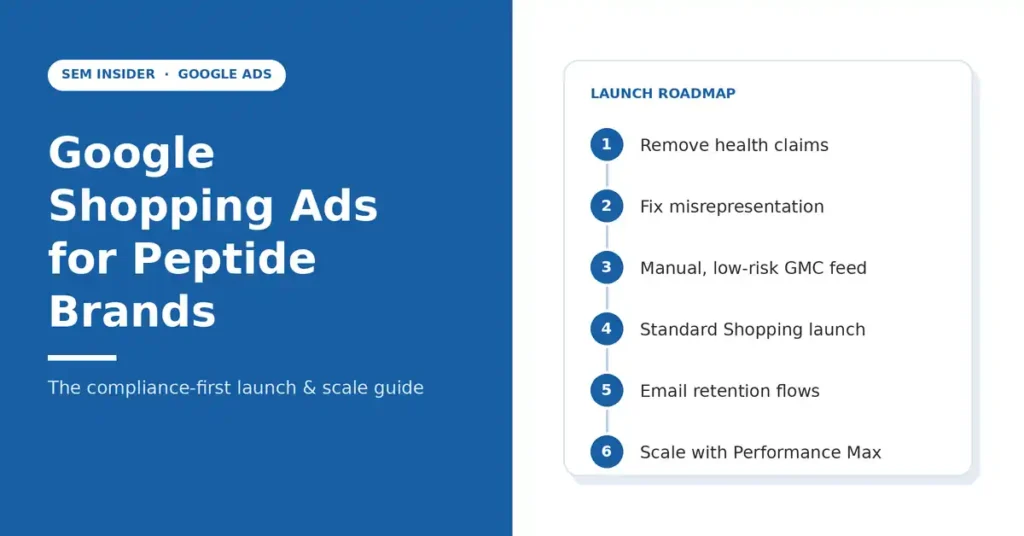
I’ve managed Google Ads for peptide and other regulated-niche brands for years, and a large share of that work has been reinstating Merchant Center accounts that were set up the wrong way. This guide covers the sequence that works: fix the site, build a small clean feed, launch Shopping carefully, add retention, then scale.
In this guide
- Why Google reviews peptide stores so strictly
- Remove health claims and human-use language
- Fix misrepresentation before you touch GMC
- Build the feed manually, not through a plugin
- Launch Shopping ads with a small, low-risk catalog
- Add email marketing for repeat purchases
- Scale with Performance Max
- Pre-launch checklist
- FAQ
1. Why Google Reviews Peptide Stores So Strictly
Every new ecommerce store goes through an initial review in Merchant Center. For a general store selling phone cases, that review is fairly light. For a peptide store, Google is checking two things at once:
- Is this a real, trustworthy business? (Misrepresentation policy)
- Is it selling or promoting something Google restricts or prohibits? (Healthcare, unapproved substances and dangerous products policies)
A peptide store has to pass both. Failing either one leads to the same result: suspension. And the first suspension is the hardest to recover from, because every later review starts from a position of distrust.
| Policy area | What Google looks at | Common peptide-store trigger |
|---|---|---|
| Misrepresentation | Business identity, contact details, policies, transparency | No address, no phone, missing refund or shipping policy |
| Healthcare & medicines | Health claims, treatment language, dosing | “Heals injuries”, “burns fat”, dosage calculators |
| Unapproved substances | Specific compounds on Google’s restricted list | Listing prohibited compounds in the product feed |
| Account-level trust | Volume and pattern of disapprovals | Hundreds of products disapproved on day one |
2. Remove Health Claims and Human-Use Language
This is where most peptide stores lose before they start. Google’s crawler reads product pages, category pages, blog posts, image alt text and even reviews. One product description that says “supports recovery” can put the entire domain at risk.
Clean up the whole site, not only the products you plan to advertise:
| Remove | Why it’s a problem |
|---|---|
| Benefit claims (healing, weight loss, anti-aging, muscle growth) | Treated as unverified health claims |
| Dosage guides, reconstitution-for-injection instructions, cycles | Implies human consumption |
| Before/after images, body transformation imagery | Implies personal use and results |
| Customer reviews describing personal effects | User content is still your content to Google |
| Blog posts comparing peptides to prescription drugs | Pulls the domain into pharmaceutical policy territory |
Product copy should be factual and descriptive: compound name, purity, quantity, form, storage, and testing documentation. Nothing about what it does in the body.
3. Fix Misrepresentation Before You Touch GMC
Misrepresentation is the most common suspension reason I see in peptide Merchant Center accounts. It rarely comes from one big issue. It comes from a store that doesn’t look like a real, accountable business.
Google wants to see that a customer can identify who they’re buying from, contact them, and understand what happens after checkout. The easiest way to make this obvious is to put everything in the footer, on every page.
Policy pages
Refund & return policy, shipping policy, terms of service, privacy policy. Written for your business, not copied from a template.
Business information
Registered business name, physical address, and an About page that explains who runs the store. Must match GMC exactly.
Support information
Working phone number, support email on your own domain, contact page, and stated response times.
Beyond the footer, check the basics Google tests during review:
- Prices, shipping costs and taxes are clear before checkout
- Checkout works end-to-end and is on a secure connection
- No placeholder text, broken links, or “coming soon” pages
- Payment methods shown on the site actually work
- Business details on the site, in GMC and in Google Ads are identical
4. Build the Feed Manually, Not Through a Plugin
This is the mistake behind a large number of the suspensions I’ve worked on. A store owner installs a WooCommerce feed plugin, connects it to Merchant Center, and the plugin pushes the entire catalog in one go.
For a peptide store that’s the worst possible first impression. Google sees a new account submitting a large number of products in a sensitive category at once, and many of them get flagged together. A wave of disapprovals on day one is one of the fastest ways to trigger an account-level review.
| Plugin bulk upload | Manual / controlled feed | |
|---|---|---|
| What gets submitted | Everything, automatically | Only products you’ve reviewed |
| Titles & descriptions | Pulled from site as-is | Written for the feed, policy-checked |
| Disapproval risk | High, and all at once | Low, and easy to isolate |
| Control over updates | Plugin syncs changes you didn’t plan | You decide what changes and when |
Start with a small set of products that clearly comply with Google’s policies. Add them through a Google Sheet or manual upload, with titles and descriptions written specifically for the feed. Let them get approved, let the account settle, and build from there.
5. Launch Shopping Ads with a Small, Low-Risk Catalog
Once the first products are approved, launch a standard Shopping campaign. Don’t jump into Performance Max yet. You want control and clean data first.
Here’s the thing most peptide brands miss: the searches with real volume in this niche are broad, category-level queries, things like “research peptides”, “buy peptides online” or “peptide supplier”. Buyers searching those terms aren’t usually looking for one exact product. They’re looking for a store they trust.
That works in your favour. A tight, compliant set of products in Shopping can bring qualified visitors to your store, and a well-built site with clear navigation, testing documentation and a professional checkout does the rest. Your early goal isn’t to advertise the whole catalog. It’s to build a clean account history and a steady flow of converting traffic.
- Start with one Standard Shopping campaign. Keep structure simple so data isn’t split thin.
- Use Maximize Clicks with a bid cap until you have conversion data.
- Set up conversion tracking properly (purchase, add to cart, begin checkout) before spending.
- Build negatives early. Exclude queries tied to medical use, treatment and personal-use intent.
- Expand the feed gradually. Add new compliant products in small batches once the account has a clean track record.
6. Add Email Marketing for Repeat Purchases
Peptide businesses run on repeat customers. A buyer who orders once and has a good experience tends to reorder, often on a predictable cycle. If you’re paying for every one of those orders through Google Ads, your margins stay thin forever.
Once Shopping ads are bringing in first-time buyers, start email marketing immediately. Every customer you retain through email is revenue you don’t have to buy again.
| Flow | Trigger | Purpose |
|---|---|---|
| Welcome series | Email signup | Build trust, introduce testing and quality standards |
| Abandoned cart | Cart left without purchase | Recover lost paid-traffic sales |
| Post-purchase | Order placed | Shipping updates, storage info, support contact |
| Replenishment | Timed after purchase | Prompt the reorder before they shop elsewhere |
| Win-back | No order in a set period | Bring lapsed customers back |
Keep the same compliance rules in your emails that you apply to the site. No health claims, no usage instructions. Some email platforms have their own restrictions on this category too, so check before you build.
7. Scale with Performance Max
Performance Max works well for peptide brands, but only once the foundation is in place. PMax needs conversion data to optimize, and it spreads spend across Search, Shopping, Display, YouTube and Discover. Launched too early, it burns budget learning from almost nothing.
Move into PMax when:
- Your Merchant Center account has been stable with a clean disapproval history
- Standard Shopping has generated consistent conversions
- Conversion tracking is verified and values are passing correctly
- You have an email list and customer data you can use for audience signals
From there, scaling usually means running multiple campaigns side by side rather than pushing one campaign’s budget higher. Splitting by product group, margin or performance tier gives you more control over where spend goes. The exact structure depends on the catalog and account history, and it’s one of the areas where experience makes the biggest difference.
Need Google Shopping ads for your peptide brand?
We set up and manage Google Ads and Merchant Center for peptide and other regulated-niche brands, from website compliance and feed setup to Shopping, PMax and scaling. We’ve also reinstated a lot of suspended Merchant Center accounts. If yours is suspended or you’re about to launch, get in touch before you submit anything else.
Pre-Launch Checklist
☐ All health claims, dosing and human-use language removed site-wide
☐ Reviews, blog posts and image alt text checked
☐ Refund, shipping, terms and privacy policies live and linked in footer
☐ Business name, address, phone and email in footer and on contact page
☐ Business details match across website, GMC and Google Ads
☐ Checkout tested end-to-end on a secure connection
☐ Every feed product checked against Google’s current policies
☐ Feed plugin disconnected; initial products added manually
☐ Conversion tracking tested before launch
☐ Email flows (welcome, cart, post-purchase) ready
Frequently Asked Questions
Can peptide brands run Google Shopping ads?
Yes, but only for products that comply with Google’s policies, on a website that passes Merchant Center’s misrepresentation review. Some peptide compounds are on Google’s unapproved substances list and can’t be advertised at all.
Why was my peptide Merchant Center account suspended?
The most common reasons are misrepresentation (missing business or policy information), health claims on the website, and bulk-uploading products that include restricted compounds. Often it’s a combination of all three.
Should I use a plugin to sync my peptide products to GMC?
Not at the start. Plugins push the full catalog at once, which exposes a new account to a wave of disapprovals. Start with a small, manually reviewed feed and expand gradually.
Can a suspended peptide Merchant Center account be reinstated?
In many cases, yes. Reinstatement depends on fixing the root cause on the website and in the feed before requesting a review. Requesting a review without fixing the issues usually leads to a longer suspension or a permanent one.
When should a peptide brand start using Performance Max?
After the Merchant Center account is stable and Standard Shopping has produced consistent conversions with verified tracking. PMax without data tends to waste budget.